Replace a drive
- Read the job card for the drive model and capacity (for example a 256 GB drive replaced by 512 GB).
- Power off, remove the old drive and fit the new one. Sans StoreDrive 256 GB and 512 GB come with the level 3 Storage drives licence.
- The Build Sheet should now read “Needs a system”. Install one with the Workshop USB.
- If the installer reports no empty drive, re-seat the drive and use Try next.
- Refit the panel and screws, run the Load test if the card asks, then send the ready e-mail.
Remove viruses (SearchPal adware)
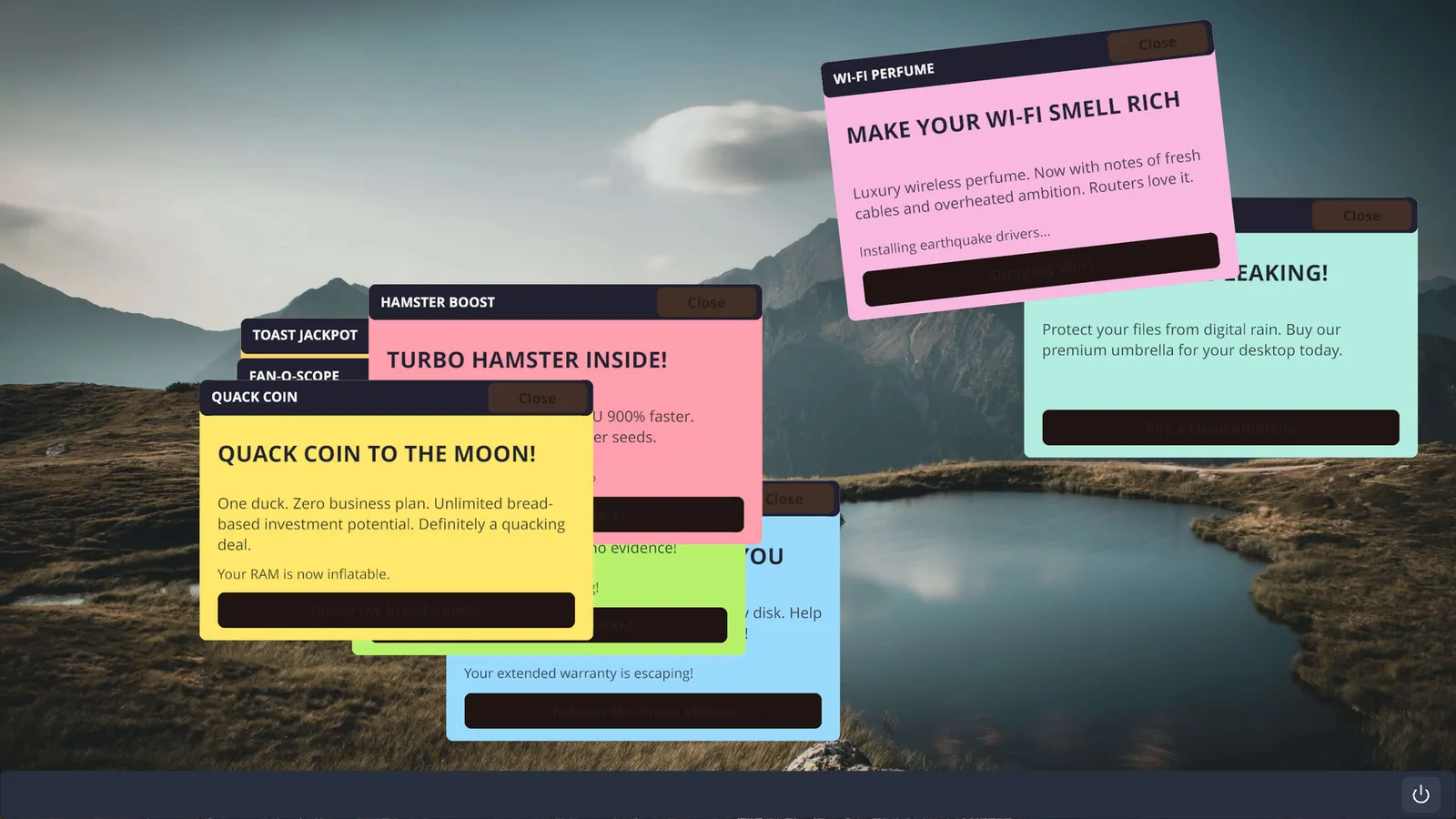
- Boot from the Workshop USB and open USB apps. Install Virus Remover.
- SearchPal tries to keep itself. On each screen choose the refusing option: the small “uninstall anyway” link, “No thanks”, untick the three extra offers, and “Don't cancel”.
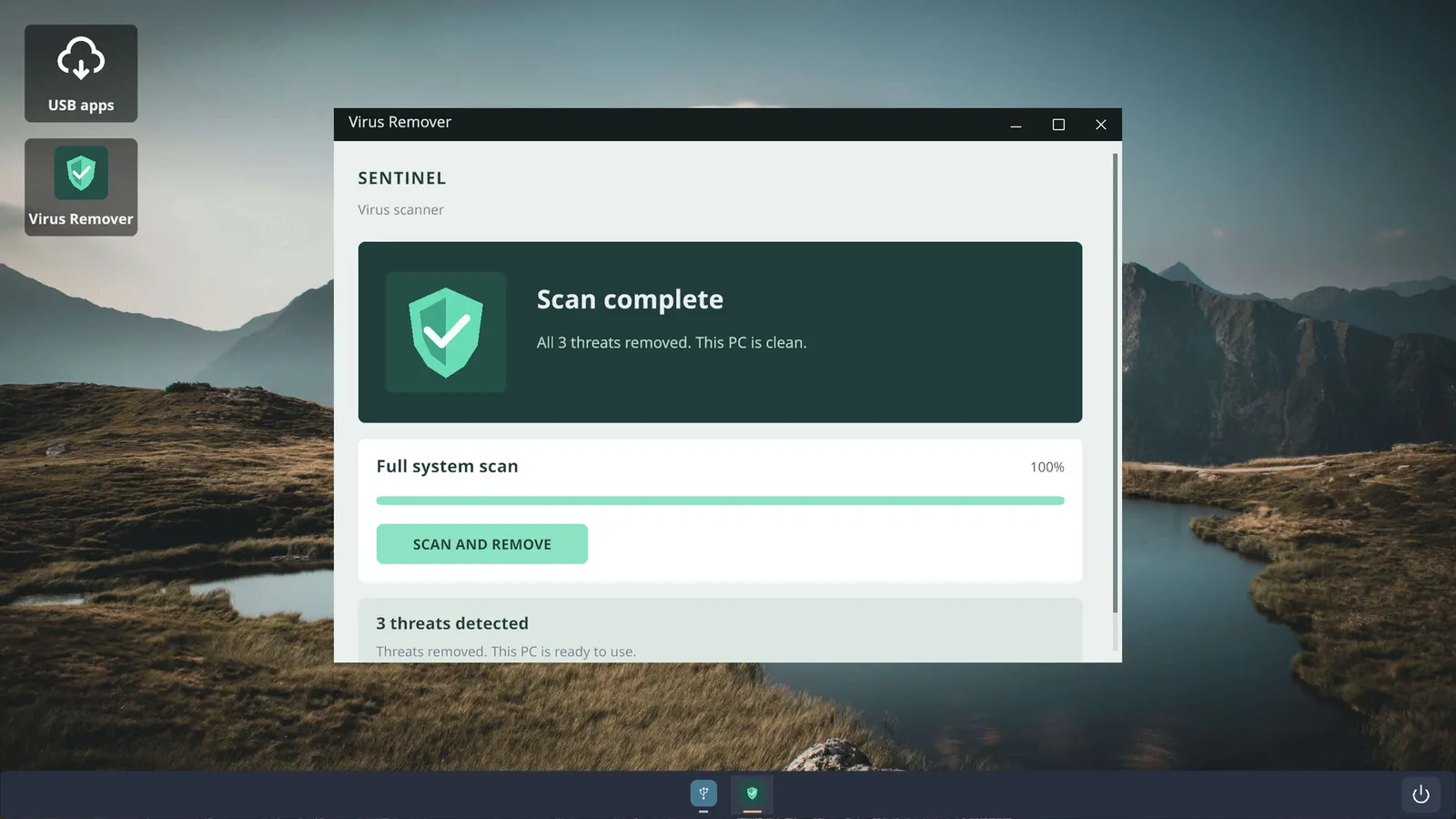
- In Sentinel, press Scan and remove and wait for 100%.
- When it reports the PC clean, the job card ticks. Unplug the USB.
The Clean Sweep achievement asks for viruses removed from 10 customer PCs.
Dust and thermal paste
- Power off before touching internal components, then remove the side panel. Since the 26 November content update, the panel itself can be removed or refitted while running; internal parts still require power off.
- Use the air duster on every highlighted part until the dust count reaches zero.
- If the Build Sheet points at paste or cooling, remove the CPU cooler.
- Wipe the CPU with paste cleaner, apply thermal paste, and refit the cooler.
- Refit the panel and screws and re-run the Load test.
Some thermal paste jobs could not be handed over before the 26 November update; that was fixed.
Tools by job
| Job | Tools | Parts | Typical blocker |
|---|---|---|---|
| Replace a drive | Workshop USB | Drive named on the card | Installer cannot see the drive |
| Remove viruses | Workshop USB, Virus Remover | — | Clicking through a SearchPal offer |
| Dust & paste | Air duster, paste cleaner, thermal paste | — | Cooler not refitted before the test |
Video
FAQ
How do you remove viruses in PC Store Together?
Boot from the Workshop USB, install Virus Remover from USB apps, refuse every SearchPal offer, then run Scan and remove in Sentinel until it reports the PC is clean.
How do I apply thermal paste?
Power off, remove the cooler, clean the CPU with paste cleaner, apply thermal paste, refit the cooler and run the Load test again.
Why does a new drive say “Needs a system”?
A fresh drive has no operating system. Install one with the Workshop USB before the handover.
Sources
- Steam store page for PC Store Together — price, launch discount, reviews, tags, platforms, screenshots and trailer; checked 27 Nov 2026
- Developer post: Hotfix Update – First Community Bug Fixes (24 Nov) — load test tick fix, storage room boxes, handover refusal reasons; checked 27 Nov 2026
- Developer post: Hotfix Update – Second Community Bug Fixes (25 Nov) — version display, mismatch warning, 65% part value, 3× buyer visits; checked 27 Nov 2026
- Developer post: Play your OWN music! (26 Nov) — Shop playlist and My music, MP3/OGG/WAV, shared playback; checked 27 Nov 2026
- Steam Community achievement list — 38 names, unlock text and icons; checked 27 Nov 2026
- Creeativvez – Day 1 video on YouTube — timestamps 05:41, 17:06, 37:55, 49:27, 50:39, 51:08; checked 27 Nov 2026
- pcstoretogether.wiki guides — step write-ups that cite the same Day 1 video; used as a cross-check only; checked 27 Nov 2026